
How to Post to Instagram From ChatGPT (Step-by-Step, 2026)
You can already ask ChatGPT to write a caption. What you cannot do out of the box is tell it "make a post about our weekend sale and put it on Instagram on Saturday morning" — and have that actually happen.
That gap closes with MCP (Model Context Protocol), the open standard that lets ChatGPT call real tools on your behalf. Connect Chrombyte as a plugin and ChatGPT gains sixteen tools that reach into your brand profile, your product catalogue, your content calendar and your connected Instagram and Facebook accounts.
This guide walks the whole setup — about two minutes — then shows what you can actually do once it is connected.
What You Will Be Able to Do
Once Chrombyte is connected, ChatGPT can:
- Generate a branded post image and caption from a one-line prompt, using your real brand colours, fonts and tone — not a generic template
- Pull in a product from your catalogue so the post shows the right item at the right price
- Turn an image you attach in chat into a post, including images ChatGPT generated in the same conversation
- Upload a Reel video and write the Instagram and Facebook captions for it by watching the video
- Schedule anything for a specific date and time, or publish immediately
- Read back your calendar — drafts, scheduled posts, what already went out, and what failed
All of it inside the chat. No dashboard tab, no copy-paste between tools.
Before You Start
Two things:
- A Chrombyte account with a brand profile filled in. The brand profile is what makes generated posts look like your posts rather than stock AI output.
- A connected Facebook Page and Instagram Business account, if you want to publish rather than just draft. Instagram only allows third-party publishing for Business and Creator accounts linked to a Facebook Page — that is Meta's rule, not ours. Without a connection, ChatGPT can still generate and save drafts; it just has nowhere to send them.
Step 1: Generate Your Personal Access Token
In Chrombyte, open Settings → Integrations & MCP and generate a Personal Access Token. Give it a name you will recognise later, like ChatGPT.
Copy it immediately. The raw token is shown once and never again — if you lose it, revoke it and generate a new one. It is the only credential standing between the internet and your workspace, so treat it like a password: never paste it into a public chat, a screenshot or a shared document.
Step 2: Turn On Developer Mode in ChatGPT
Custom MCP plugins live behind Developer mode. Open chatgpt.com, click your profile at the bottom of the sidebar, then Settings.
Go to Security and login, scroll down to Developer mode, and turn the toggle on.
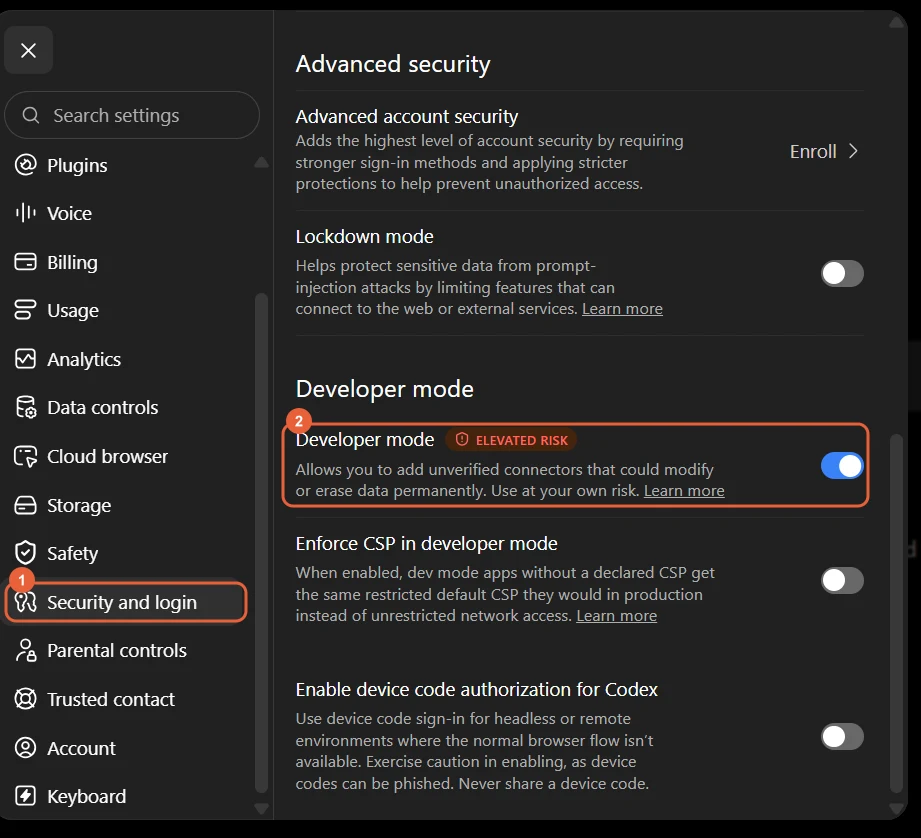
1: Security and login. 2: the Developer mode toggle.
ChatGPT flags this as elevated risk, and that warning is fair. Developer mode lets you add servers that OpenAI has not reviewed. Only add servers you trust and whose URL you typed yourself.
Step 3: Add Chrombyte as a Plugin
Go to chatgpt.com/plugins and click the + icon beside the search box.
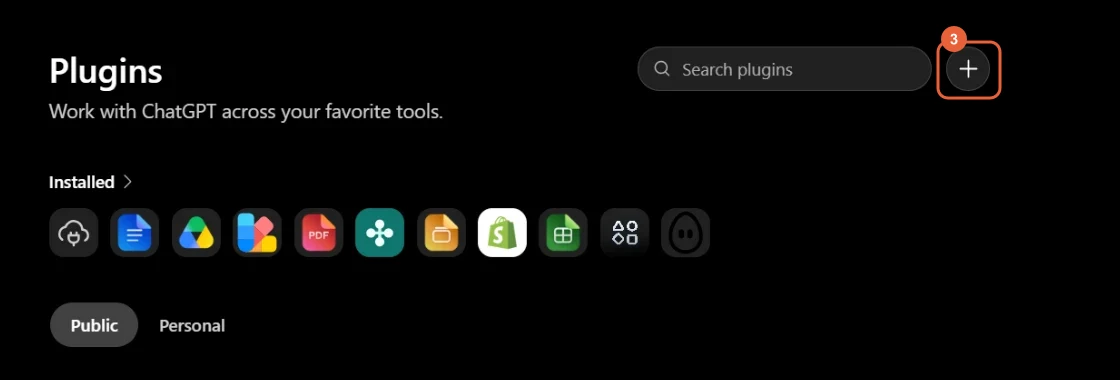
3: the + icon that opens the New Plugin dialog.
Step 4: Fill In the New Plugin Dialog
Four fields, then you are done.
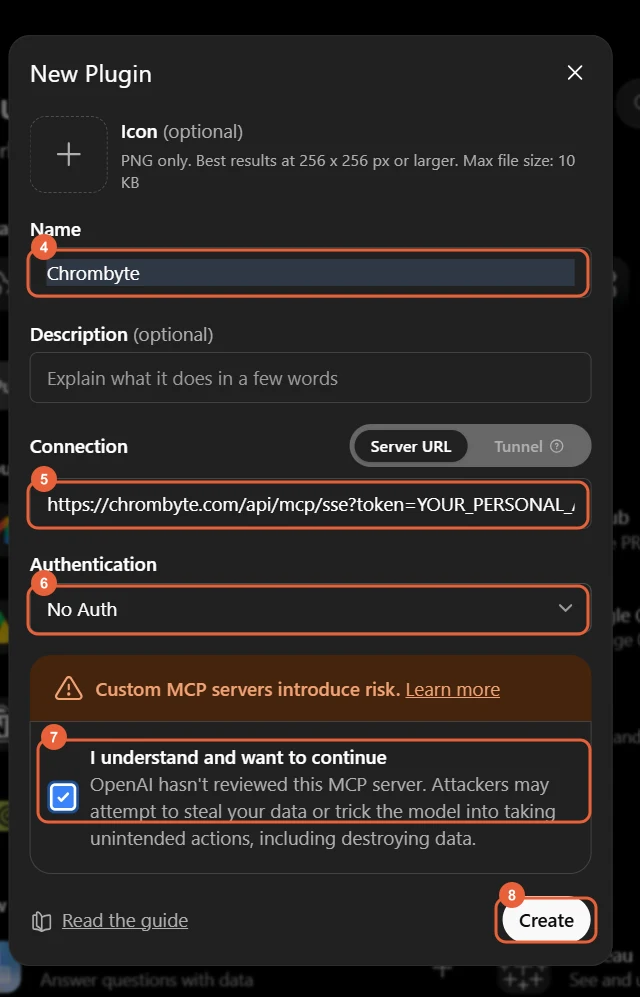
4: Name. 5: Server URL. 6: Authentication. 7: consent. 8: Create.
- Name —
Chrombyte - Connection — leave it on Server URL and paste:
https://chrombyte.com/api/mcp/sse?token=YOUR_PERSONAL_ACCESS_TOKEN
Replace YOUR_PERSONAL_ACCESS_TOKEN with the token from step 1. Everything after token= is your credential.
- Authentication — No Auth. This looks wrong and is not: the token already in the URL is what authorises the connection, so ChatGPT does not need to add a second layer on top.
- Tick I understand and want to continue, then click Create.
Give it ten to twenty seconds. A connect dialog appears — click Connect, and the plugin is live.
Step 5: Use It
Restart ChatGPT and open a new chat. Type @chrombyte and pick the plugin from the list.
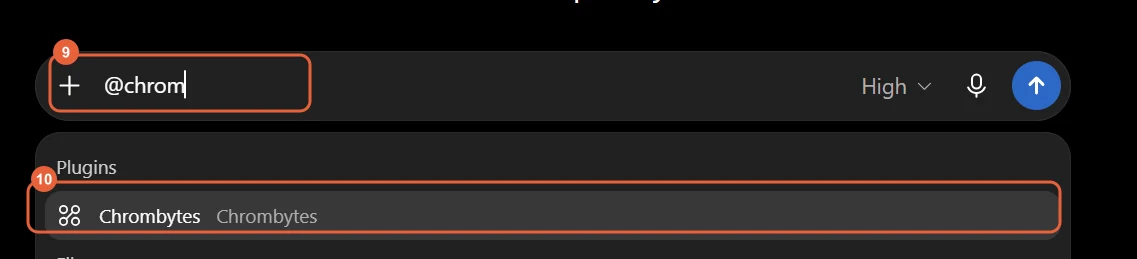
9: type @chrombyte. 10: select the plugin.
From here you are just talking. Some prompts that work:
@chrombyte Generate an Instagram post announcing 20% off our whole range this weekend.
@chrombyte Make a 4-slide carousel about why cold-pressed oil keeps longer, then schedule it for Friday at 9am.
@chrombyte Show me everything scheduled for next week.
@chrombyte Here's a Reel video — write the captions yourself and publish it to Instagram and Facebook now.
For that last one, attach the MP4 directly in ChatGPT. If you leave the caption out, Chrombyte watches the video and writes the captions itself using your brand's caption guide, tone and language — which is usually better than dictating wording you have not seen the footage for.
Why MCP Beats Copy-Pasting From ChatGPT
The old workflow was: ask ChatGPT for a caption, copy it, open Canva, make a graphic, download it, open Instagram, upload, paste, set a reminder to post later. Six tools, and the output only looks like your brand if you make it look like your brand by hand every single time.
With MCP the brand consistency is not your job any more. Your colours, fonts, tone rules and product catalogue live in the brand profile, and every generated post inherits them. ChatGPT is the interface; Chrombyte is the part that knows what your business looks like.
The second difference is that the loop closes. ChatGPT is not handing you text to act on — it is scheduling the post, and it can read the calendar back to tell you whether it went out.
Connecting Claude and Cursor Instead
The same server URL works for any MCP client. In Claude, add it as a custom connector at claude.ai/customize/connectors. In Claude Desktop or Cursor, add a chrombyte entry with the same url to your MCP config file. Full instructions for each live in Settings → Integrations & MCP. There is a full tool reference on the ChatGPT MCP server page and the Instagram MCP server page, and more on how the integration works on the MCP integration page.
Troubleshooting
The plugin will not connect. Almost always the token. Check you replaced the whole YOUR_PERSONAL_ACCESS_TOKEN placeholder including the underscores, that no space crept in when pasting, and that the token has not been revoked.
ChatGPT cannot see the plugin in a chat. Restart ChatGPT after creating it, then type @chrombyte — plugins added mid-session do not always appear in chats that were already open.
Posts generate but will not publish. Your Facebook Page or Instagram Business account is not connected, or the Instagram account is still a personal profile. Convert it to a Business or Creator account, link it to a Facebook Page, and reconnect in Chrombyte.
A Reel says it is still processing. Meta processes video asynchronously and it can take a few minutes. Ask ChatGPT for the Reel status rather than publishing again — a second attempt on an uncertain status is how you end up with the same Reel posted twice.
Frequently Asked Questions
Can ChatGPT post to Instagram directly without a tool like Chrombyte?
No. ChatGPT has no connection to your Instagram account on its own, and Instagram's API does not accept posts from arbitrary applications. Publishing requires an approved integration with an Instagram Business or Creator account linked to a Facebook Page. Chrombyte holds that connection and exposes it to ChatGPT through MCP.
Is it safe to give ChatGPT a Personal Access Token?
The token grants access to your Chrombyte workspace only — your brand profiles, posts and connected accounts. It cannot reach your Meta password or your payment details. You can revoke it at any moment from Settings, which cuts access immediately. Treat it like any other password: never share it, and generate a separate token per tool so you can revoke one without breaking the others.
Why does the setup say No Auth when I am using a token?
The token is already inside the server URL, so the connection is authenticated by the URL itself. Choosing an authentication method on top of that would make ChatGPT ask for a second, separate credential that does not exist. No Auth is correct here.
Which ChatGPT plan do I need?
Developer mode and custom plugins are available on the free tier — you do not need a paid ChatGPT plan to connect Chrombyte. If the Developer mode toggle is missing from your settings, make sure you are looking under Settings → Security and login, and that the ChatGPT app or browser tab has been reloaded recently.
Can it post to Facebook too?
Instagram Business and Creator accounts, and Facebook Pages — images, carousels and Reels, scheduled or published immediately. LinkedIn is not supported yet. Each account is connected once inside Chrombyte; the AI client never handles your social logins.
Does ChatGPT generate the images, or does Chrombyte?
Both, and the choice matters. Images generated by Chrombyte use your brand profile and your real products, so posts look professional and consistent with the rest of your feed. Images generated in ChatGPT itself look AI-generated and will not match your brand — but you can still attach one and have Chrombyte turn it into a scheduled post with a caption.
What happens if I revoke the token?
Every client using it loses access immediately — ChatGPT will report that the plugin cannot connect. Nothing already scheduled is affected; those posts still publish on time. Generate a new token and update the plugin's URL to reconnect.
Run Your Social Media From ChatGPT
Connect Chrombyte in two minutes and generate, schedule and publish on-brand posts and Reels without leaving the chat.
Get Your Access Token